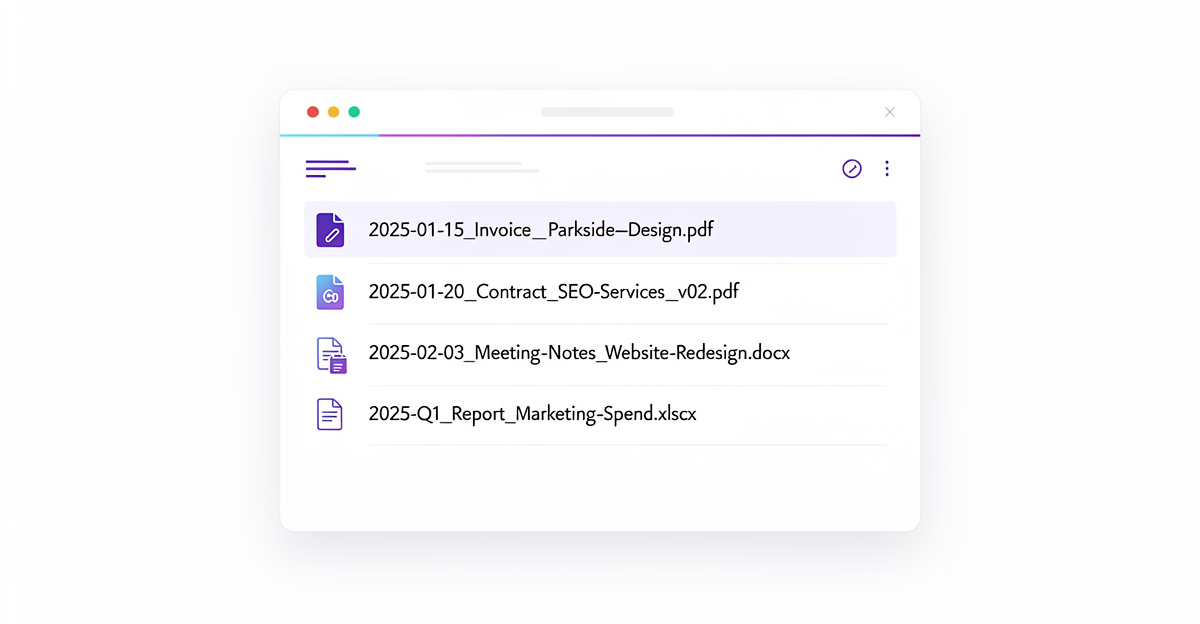
I never had a problem with naming files badly. My problem was not naming them at all. Scans from my phone would land in an Inbox folder as Scan_003.pdf, IMG_4521.jpg, and stay there. Forever. I’d tell myself I’d organize them later, but later never came. Finding that one receipt from three months ago? Good luck.
After finally getting fed up, I developed a system that actually sticks. These five rules work for me—though your mileage may vary. Take what’s useful, ignore what isn’t.
1. Start with the Date (YYYY-MM-DD)
This single change had the biggest impact on my file organization. When you put the date first using the ISO format, everything sorts chronologically by default.
The format: 2025-01-15 for January 15th, 2025. Year first, then month, then day—always with leading zeros.
What I used to have:
Invoice Jan 15.pdfMeeting notes 2-3.docxQ1 report.xlsx
What I do now:
2025-01-15_Invoice_Parkside-Design.pdf2025-02-03_Meeting-Notes_Website-Redesign.docx2025-03-31_Q1-Report_Sales.xlsx
Why does this work? Computers sort text alphabetically, and 2025-01-15 naturally comes before 2025-02-01. Your file browser does the organizing for you.
A note on format: I’ve debated this endlessly with colleagues. Some prefer YYMMDD (like 240115) because it’s shorter. But I find it harder to read at a glance—is that January 15th or the 24th of some month? If you’re only using it for sorting, the short format works. If you actually want to read the date, the full YYYY-MM-DD is clearer. In a team, just pick one and stick with it.
When to skip the date entirely: If you’re working within a cloud provider that has solid search and sorting by modification date, you might not need dates in filenames at all. Google Drive, Dropbox, and others let you sort by “last modified” or search by date range. The date prefix matters most when you’re browsing folders locally or need chronological order to be visible in the filename itself.
I use dates for:
- Invoices and receipts — finding last month’s expenses takes seconds
- Meeting notes — easy to trace back what was discussed when
- Contracts — immediately see when something was signed
- Quarterly reports — use
2025-Q1instead of a specific date when the document covers a whole quarter
For photos and personal files that I mostly search for? I often skip the date.
2. Consider Dropping Spaces and Special Characters
This one comes with a caveat: if you’re just a regular person using files on your own computer, spaces are fine. Modern operating systems handle them without issues. Q4 Sales Report.xlsx works perfectly well in Finder or Explorer.
But if you work with others, or ever share files across different tools, it gets messier. Different people use different software. Someone on your team might use command-line tools, scripts, or older systems that choke on spaces. A URL with spaces gets encoded as %20, which looks ugly and can break when copied.
Characters that can cause trouble:
- Spaces (in shared/technical environments)
& # % ! @ $ ^ * ( ) [ ] { } | \ : ; " ' < > , ?
Safe alternatives:
- Hyphens (
-) or underscores (_) instead of spaces - Stick to letters, numbers, and those two separators
I’ve settled on hyphens for readability within names and underscores between major parts. So 2025-01-15_Invoice_Parkside-Design.pdf breaks down as: date, type, client.
The practical version: Use whatever works for you. If you’re sharing files in a team or technical environment, avoiding spaces prevents headaches. If it’s just you and your Documents folder, don’t overthink it.
3. Version Numbers Beat “final” Every Time
We’ve all seen this folder:
Proposal.docxProposal_final.docxProposal_final_v2.docxProposal_final_FINAL.docxProposal_use_this_one.docx
The problem with “final” is that it’s never actually final. There’s always one more round of feedback.
I use simple version numbers: v01, v02, v03. Two digits matter—otherwise v10 sorts between v1 and v2 instead of after v9.
For documents that go through review cycles, I add status labels:
DRAFT— still working on itREVIEW— sent for feedbackAPPROVED— signed off, don’t touch
A typical progression:
2025-03-15_Proposal_Greenfield-Inc_v01_DRAFT.docx2025-03-18_Proposal_Greenfield-Inc_v02_REVIEW.docx2025-03-20_Proposal_Greenfield-Inc_v03_APPROVED.docx
When a project wraps up, I move old versions into an Archive subfolder. The main directory stays clean.
4. Descriptive, but Not a Novel
There’s a balance here. Too short and the name is useless (doc1.pdf). Too long and it gets cut off in your file browser.
I aim for 30-50 characters before the extension. Enough to know what’s inside, short enough to read at a glance.
My template:
[Date]_[Type-or-Project]_[Details]_[Version].ext
Some examples:
| What it is | How I name it |
|---|---|
| Invoice | 2025-01-15_INV-1042_Riverside-Media.pdf |
| Contract | 2025-02-01_Contract_SEO-Services_v02.pdf |
| Product photo | Product_Running-Shoes_Side-View.jpg |
| Quarterly report | 2025-Q1_Report_Marketing-Spend.xlsx |
| Client meeting | 2025-01-15_Meeting_Rebranding-Kickoff.docx |
Words I’ve stopped including:
- “the”, “a”, “an” — unnecessary padding
- “document” or “file” — it’s obviously a file
- My own name — I know I made it
The_Final_Project_Document_File_v2.docx becomes Project-Brief_v02.docx.
5. Pick a System and Actually Use It
An okay system you follow beats a perfect system you ignore. I’ve seen people spend hours designing elaborate naming schemes, then abandon them after a week because they were too complicated.
Start simple. You can always refine later.
For solo use: Just start applying the rules to new files. You’ll internalize the pattern quickly. Rename old files only when you need to touch them anyway—no need for a massive cleanup project.
For teams: This is where documentation matters. Put the conventions in a shared doc, include examples of good and bad names, and add it to onboarding. Otherwise you’ll end up with five different naming styles across the same project.
Quick decisions to make:
- Hyphens or underscores? (I use both—hyphens within words, underscores between sections)
- Date at the start or skip it?
- If using dates:
YYYY-MM-DDor something shorter? - How to handle versions?
- Any prefixes for document types? (INV for invoices, etc.)
Whatever you decide, the team needs to agree. Individual preference is fine when you’re solo; consistency matters when you’re not.
Quick Reference
| Rule | Do This | Not This |
|---|---|---|
| Dates | 2025-01-15 | Jan 15, 2025 or 1-15-24 |
| Spaces | Project-Report (in teams) | Project Report (shared files) |
| Versions | v01, v02 | final, final_v2 |
| Length | Q1-Sales-Report.xlsx | The_Quarterly_Sales_Report_For_Q1_2025_Final_Version.xlsx |
| Consistency | Pick one pattern | Mix styles randomly |
When You Have Better Things to Do
These conventions work. But I’ll be honest—manually renaming every invoice, receipt, and contract gets old. Especially for scans that pile up faster than I can organize them.
For quick bulk renaming, cleanname.io is useful. It runs in your browser and applies naming patterns to batches of files.
For ongoing automation, I’ve been building Fileo
to solve this problem. Drop a document in and it gets renamed and organized automatically—an invoice becomes 2025-01-15_Invoice_Riverside-Media.pdf without any manual work. No more files sitting in an inbox forever.
The goal isn’t to become a file-naming expert. It’s to stop thinking about file naming entirely, so you can focus on work that actually matters.