Staring at a mountain of receipts, invoices, or old documents is a feeling most of us know all too well. Those hours spent manually typing out information aren’t just tedious—they’re a massive drain on your productivity and peace of mind. The simple answer to what is OCR technology is that it’s a digital translator. It looks at an image of a document, reads the text, and turns it into real, usable data on your computer.
It’s your ticket to escaping the grind of manual paperwork.
Tired of Manual Data Entry? Meet OCR
If you’ve ever had to retype text from a scanned PDF or a picture you snapped with your phone, you’ve felt the exact pain that Optical Character Recognition (OCR) was built to fix. It’s the behind-the-scenes magic that transforms static, “dead” text trapped in an image file into live, active data you can actually work with—copy, paste, search, you name it.
Think of OCR as a bridge connecting our physical papers to the digital world. It lets your computer see past the pixels of an image and actually read the words, numbers, and characters printed on the page, saving you precious time and effort.
The Problem With Paper and Scans
Let’s be honest, manual data entry is more than just boring. It’s a genuine bottleneck that slows down your entire workflow, whether you’re a freelancer logging receipts or a small business processing a stack of invoices.
The pain points are probably familiar:
- It’s Incredibly Time-Consuming: Typing up the details from one invoice might take a few minutes. Now, multiply that by hundreds. The lost hours quickly add up—time you could be spending on growing your business or just enjoying your life.
- It’s Prone to Human Error: Nobody’s perfect. A tiny typo, a misplaced decimal, or a wrong invoice number can snowball into major accounting headaches and compliance issues down the road.
- Your Information Is Stuck: A folder full of scanned documents is like a digital black hole. You can’t just search for a client’s name or a specific PO number. You’re stuck opening and reading every single file until you find what you need.
Think of it this way: Without OCR, your digital documents are like books with their pages glued together. You can see the cover, but you can’t access the valuable information inside.
The Solution for Peace of Mind
This is where understanding what OCR technology is really makes a difference. By automating the grunt work of extracting text, it solves these frustrations almost instantly. Suddenly, you have the power to pull key information from any document, turning those messy piles of paper into a neat, fully searchable digital archive.
It’s about more than just being efficient. It’s about gaining real peace of mind, knowing your information is accurate, easy to find, and completely under your control—all without the soul-crushing grind of manual entry.
How OCR Technology Reads Your Documents
Ever wondered how a computer actually reads a document? It’s not magic, but it is a clever, methodical process that happens in three key stages. The best way to think about it is like someone learning to read for the first time: you first need a clear view of the page, then you sound out the words, and finally, you check your work for mistakes.
This is exactly how OCR technology turns a picture of a receipt or a scanned contract into useful, searchable data. It’s a reliable system that closes the gap between your paper files and your digital world, saving you from endless hours of typing.
Step 1: Image Preprocessing
Before a computer can even attempt to read, it needs to see the text clearly. This first step, Image Preprocessing, is all about cleaning up the scanned image to make it as legible as possible. It’s the digital equivalent of turning on a lamp to read a book in a dim room or straightening a crooked page.
The software quietly performs a few cleanup jobs behind the scenes:
- Deskewing: It digitally straightens out pages that were scanned at a slight angle.
- Noise Reduction: It gets rid of random specks, stray marks, or shadows that could confuse the software.
- Binarization: It converts the image into simple black and white, making the letters and numbers pop against the background.
Getting this first step right is critical. A cleaner image at the start almost always means a more accurate result in the end.
Step 2: Character Recognition
With a tidy image ready to go, the real “reading” can begin. This is the Character Recognition phase, where the software actually analyzes the shapes on the page and figures out what letters, numbers, and symbols they are. Think of a child finally connecting the shape of an “A” with the sound “ah.”
The OCR engine dissects the page into lines, then words, and finally into individual characters. It uses smart pattern-matching algorithms to compare each little shape against a massive library of known fonts and writing styles. This is where modern AI and machine learning have made a huge difference, letting software recognize all kinds of text with incredible speed. For more on prepping your documents, check out our guide on how to scan a double-sided document and reclaim your time.
Step 3: Post-Processing
No reading process is truly finished without a quick proofread. The final Post-Processing stage is the software’s way of double-checking its own work. After it has identified all the characters, it uses language models and dictionaries to spot and fix likely errors.
For instance, if the OCR engine isn’t sure if a shape is an “S” or a “5,” it looks at the context. In the word “5eptember,” it will intelligently correct the “5” to an “S” because it knows that’s a month.
This final polish ensures the text you get isn’t just a jumble of characters but a clean, accurate, and ready-to-use digital document. This intelligent self-correction is what gives you confidence that your digitized information is reliable.
How OCR Fits into the Bigger Picture
While OCR is a powerhouse for reading printed text, it’s not the only tool in the shed. Think of it as part of a larger family of recognition technologies, each with its own special talent. Using the right one for the job is the difference between a smooth, automated process and a frustrating manual cleanup.
You wouldn’t ask a bookworm to decipher a doctor’s handwriting, right? The same logic applies here. Different documents demand different kinds of digital eyes to read them accurately. Understanding these differences helps you pick the right solution and avoid costly mistakes.
The core process for most of these technologies starts with the same three steps that OCR follows. First, the software cleans up the image. Then, it recognizes the characters or marks. Finally, it double-checks its work.
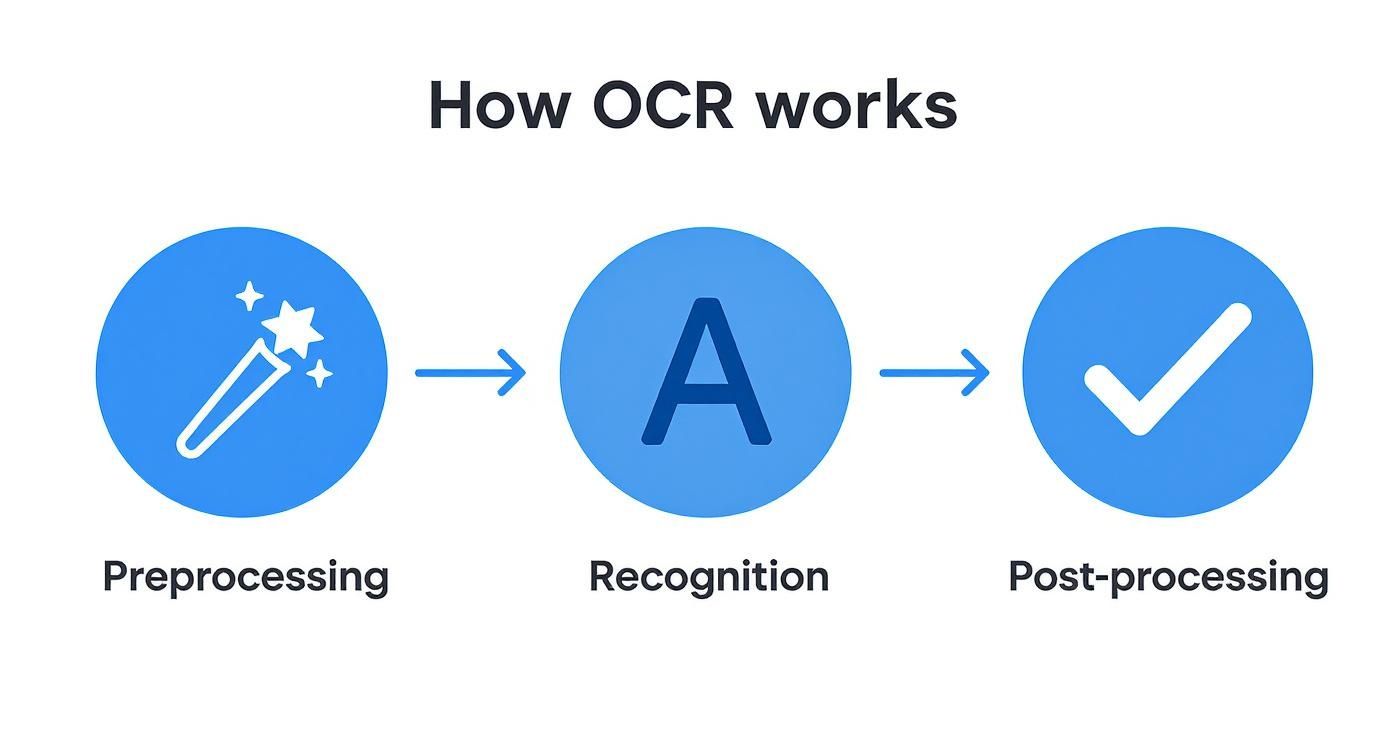
This simple pipeline—clean, recognize, and review—is the foundation that makes turning pictures into usable data possible.
Meet the Rest of the Recognition Family
So, what are these other “smarter siblings” of OCR? Let’s meet the main players. Each is a specialist, built to handle a specific type of information. This specialization is a key part of more advanced systems, which you can learn more about in our guide on what is intelligent document processing .
For now, here’s a quick look at how they stack up.
OCR vs ICR vs OMR A Quick Comparison
This table breaks down what each technology does best.
| Technology | What It Reads | Best Use Case Example |
|---|---|---|
| OCR (Optical Character Recognition) | Machine-printed text (like in a book or invoice) | Digitizing a printed contract to make it searchable. |
| ICR (Intelligent Character Recognition) | Cursive or handwritten printed text | Processing handwritten notes on a customer feedback form. |
| OMR (Optical Mark Recognition) | Marks, bubbles, or checkboxes on a form | Automatically grading a multiple-choice exam or counting survey responses. |
As you can see, they aren’t interchangeable. Each has a clear purpose.
Why This Distinction Matters
Choosing the right technology is everything. If you feed a handwritten form to a standard OCR engine, you’re going to get gibberish. That means you’re right back to manual data entry, which is exactly what you were trying to escape.
Understanding the roles is simple: OCR is for printed text, ICR is the handwriting expert, and OMR is the checkbox counter. Knowing this lets you find a solution that actually works.
This knowledge helps you look for more complete platforms that often combine these technologies. For instance, an advanced invoice processing tool might use OCR for the printed line items and ICR to capture any handwritten notes in the margins. This way, every single piece of data gets captured correctly, giving you a perfect digital record without the headache.
How OCR Can Transform Your Workflow
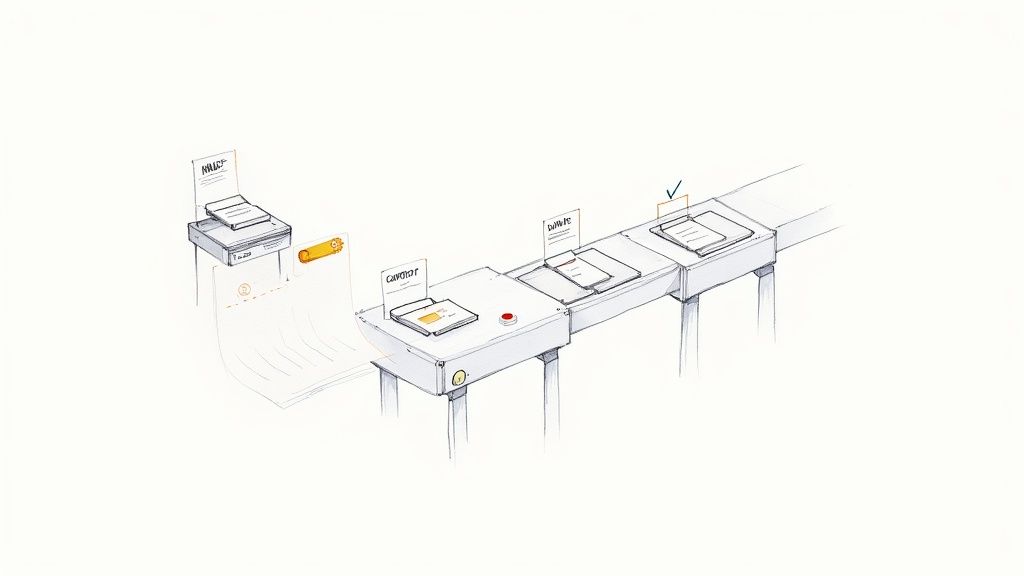
It’s one thing to understand the mechanics of OCR, but it’s another to see it actually solve problems you deal with every day. This isn’t just an interesting piece of tech; it’s a practical tool that takes on the most mind-numbing parts of managing documents, freeing up your time and giving you some much-needed breathing room.
Just think about it: no more dreading the end-of-the-month paperwork pile. No more late nights spent hunched over a keyboard, manually punching in invoice details or trying to decipher crumpled receipts from the bottom of a bag. That’s the real, immediate impact OCR can have on your productivity.
Escaping the Manual Grind
At its heart, OCR tackles the biggest bottleneck in any paper-based workflow: slow, mistake-prone manual data entry. Whether you’re a freelancer juggling clients, a small business owner tracking expenses, or just trying to manage your own household finances, the tedious cycle is always the same. A document shows up, and you have to stop everything to type its information into a spreadsheet or accounting app.
OCR completely breaks that cycle. Here are some practical examples of how it saves you time:
- Invoice Processing: Instead of manually typing out vendor names, due dates, and totals, OCR reads the invoice for you. It extracts that key data and can even push it directly into your accounting software, which all but gets rid of costly typos.
- Receipt Management: Suddenly, expense reports aren’t a chore. You just scan your receipts, and the tech grabs the merchant’s name, the date, and the total amount. Everything is organized into a clean, searchable digital file.
- Contract Analysis: Ever needed to find one specific clause buried in a 50-page legal document? Instead of scanning every single page with your eyes, a quick OCR scan makes the entire contract searchable by keyword. You can find what you need in seconds.
The Power of Zero-Touch Filing
Modern tools have pushed this idea even further with something called zero-touch filing. This is where things get really exciting for your productivity and peace of mind. It’s a system that doesn’t just read your documents—it automatically names them, sorts them, and files them away in the right digital folder without you having to do a thing.
The whole point is to create a frictionless path from a physical piece of paper to a perfectly organized digital archive. You scan the document, and the AI does the rest. It’s like having a filing system that runs itself.
This kind of automated organization is a massive boost for productivity. You can find out more about putting a system like this in place in our guide to an OCR document organizer .
From Industrial Roots to Your Desktop
While this might sound like something out of the future, the core concept has been around for a long, long time. In fact, early forms of OCR were already proving their worth in industrial settings back in the mid-1960s.
The U.S. Postal Service, for example, used massive systems that could read and sort an incredible 42,000 addresses per hour at its main Detroit office. You can dig into the origins of the tech in this detailed history of OCR .
Today, that same fundamental power is available to everyone. The principles that sorted mail on an enormous scale can now help you conquer your own personal paper chaos. What was once an industrial-strength solution is now a simple, accessible way to bring clarity and control to your work and life.
Why OCR Isn’t Always Perfect
Even the best OCR technology isn’t magic, and it’s good to have a realistic grasp of what it can and can’t do. While it’s a massive leap forward from typing everything out by hand, no automated system is flawless. You’ll probably spot an error in the extracted text from time to time.
The good news? Understanding why these mistakes pop up gives you the power to sidestep them. 100% accuracy is the unicorn of automated processing—rarely seen in the wild with real-world documents that have been folded, stained, or poorly scanned. But most errors trace back to just a few common issues.
A little prep work on your end can make a huge difference in the results.
It All Starts With Image Quality
The single biggest influence on OCR accuracy is the quality of the image you feed it. Here’s a simple way to think about it: if you can’t easily read the document, the software is going to have an even tougher time. A clean, clear scan is the foundation for everything that follows.
Common problems that trip up the software include:
- Low Resolution: Fuzzy, pixelated images are a nightmare for OCR. The software needs to see crisp character shapes to tell a “c” from an “o.” Always aim for a high-resolution scan.
- Bad Lighting and Shadows: A dark photo from your phone or a shadow falling across the page can completely hide text. This forces the OCR to guess, and it often guesses wrong.
- Physical Blemishes: Coffee rings, faded ink, and heavy creases on the original paper create visual noise that can confuse the recognition engine.
The old saying “garbage in, garbage out” is especially true here. Taking a few extra seconds to get a clean scan will save you minutes of fixing mistakes later.
Funky Fonts and Complicated Layouts
Beyond the raw image quality, the document’s design itself plays a big part. OCR performs best on straightforward, structured documents with plain, common fonts. The more creative or cluttered the layout, the higher the chance of errors.
Keep an eye out for these potential troublemakers:
- Fancy Fonts: That beautiful, looping script font might look great, but it’s tough for a machine to decipher. Standard fonts like Arial or Times New Roman are much easier for software to recognize.
- Weird Layouts: Documents with text scattered across multiple columns, text boxes, and images can sometimes confuse the software’s ability to follow the correct reading order.
- Handwritten Scribbles: Standard OCR is built for printed text, not handwriting. While other tech (like ICR) can handle it, mixing printed words with handwritten notes on the same page can easily trip up a basic OCR tool.
Knowing these limitations helps you set your documents up for success. You’ll spend far less time correcting little typos and more time reaping the benefits of automated, organized files.
The Future of Intelligent Document Processing
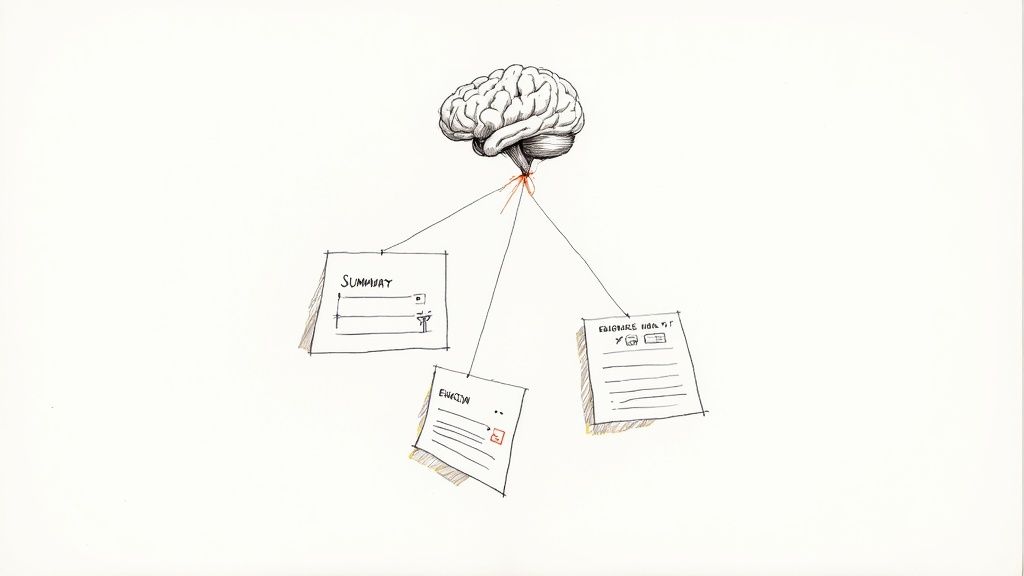
Basic OCR is just the beginning. The technology is quickly moving past just reading characters and into something much more powerful: Intelligent Document Processing (IDP). This next wave blends OCR with sophisticated AI and machine learning, allowing systems not just to see text, but to actually understand it.
This jump from simple recognition to real comprehension is a massive deal for productivity. Think about an AI that doesn’t just digitize a report but automatically pulls out the key findings and hands you a summary. Or a system that can scan through thousands of customer feedback forms and instantly tell you the overall sentiment—positive, negative, or neutral—with zero human effort.
Beyond Reading to Understanding
The future of handling documents is all about context and meaning. This is possible by bringing in technologies like Natural Language Processing (NLP), which is what gives software the ability to pick up on the subtleties of human language.
Future systems will handle the kind of analytical work that used to eat up hours of our time:
- Automated Summarization: Instantly boiling down long contracts or dense research papers into a few key bullet points.
- Sentiment Analysis: Gauging the mood from customer or employee feedback on a massive scale.
- Data Validation: Automatically checking information across multiple documents to spot errors or inconsistencies.
This leap forward didn’t happen overnight; it’s built on decades of work. Back in 1974, Ray Kurzweil’s omni-font OCR gave machines the ability to read nearly any printed text, opening the door to mass digitization. More recently, deep learning breakthroughs, like those in Google’s 2018 Tesseract 4.0 release, have pushed accuracy and flexibility to new levels, setting the stage for the intelligent systems we see today. You can learn more about the evolution of optical character recognition and how we got here.
The goal is to create a work environment where your focus is on making decisions, not on finding and interpreting data.
This evolution brings us much closer to a reality where managing documents is no longer a chore. Instead, it’s an automated, smart process that frees you up to focus on the work that truly matters.
Common Questions About OCR
To wrap things up, let’s tackle a few of the most common questions people have once they get the gist of OCR. These are the practical, real-world concerns that pop up after you understand the basics.
Is OCR Secure Enough for My Sensitive Documents?
Absolutely, as long as it’s done right. Any worthwhile OCR software provider takes security seriously, using things like end-to-end encryption to protect your data both while it’s being sent and while it’s being stored. Think of it as putting your sensitive financial statements or contracts into a digital armored truck.
For total peace of mind, look for solutions that work directly within your own cloud storage. This way, your files never leave the secure environment you already control. It’s always a good idea to quickly scan a provider’s privacy policy and security specs before you start uploading anything important.
Can OCR Actually Read Handwriting?
For the most part, no—but some special tools can. Standard OCR is trained on clean, machine-printed text and gets tripped up by the endless variations in human handwriting. Point it at messy cursive, and you’ll likely get a jumble of nonsense.
This is where a different, more advanced technology called Intelligent Character Recognition (ICR) comes in. ICR is specifically designed to decipher handwritten text. Many modern document tools now bundle both OCR and ICR together, so they can pull text from a document whether it was typed or scribbled in the margins.
Key Takeaway: If you’re dealing with handwritten notes, you need a tool that specifically mentions ICR or handwriting recognition. Using the right tool for the job will save you a ton of time and frustration.
What’s the Easiest Way to Get Started With OCR?
You can be up and running with OCR in minutes using the phone or computer you already have. There’s no need to buy fancy equipment or wrestle with a complicated setup just to start saving time.
Here are a few dead-simple ways to begin:
- Mobile Scanning Apps: Apps you probably already have, like Google Drive or Microsoft Lens, have OCR built right in. Just take a picture of a document, and they’ll pull the text out for you.
- Desktop Software: Programs like Adobe Acrobat can run OCR on any PDF. With just a couple of clicks, your entire archive of documents can become fully searchable.
- Automated Filing Tools: For a truly set-it-and-forget-it approach, platforms built for automation use OCR to read, rename, and file all your documents for you. No manual effort required.
Ready to stop filing and start living? Let Fileo bring zero-touch organization to your digital life. Experience the peace of mind that comes from a perfectly organized, effortlessly managed document system. Get started with Fileo today!